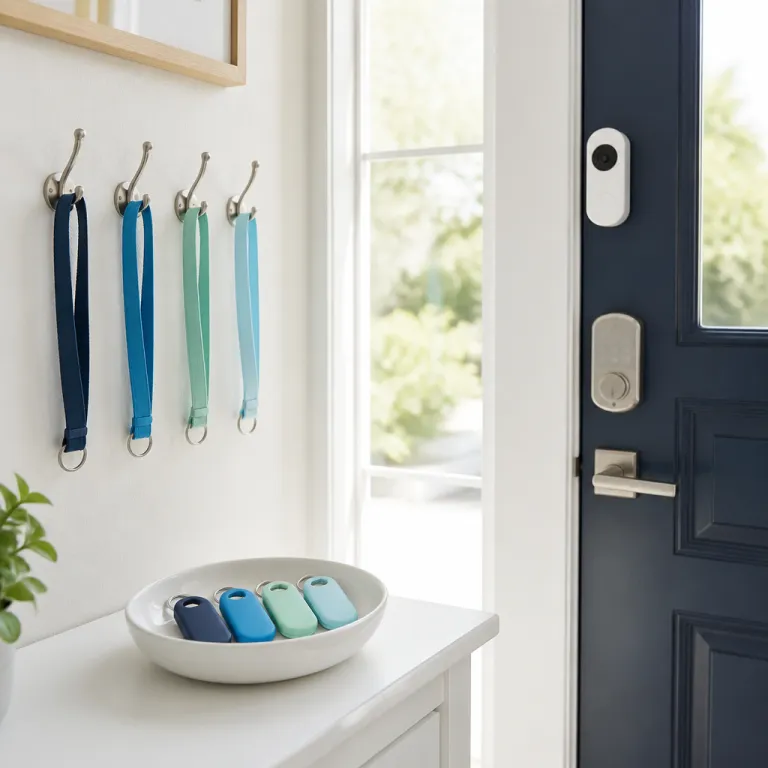
How Ring shared users work and why logins should stay private
Ring doorbell shared users family access starts with one primary account holder. That primary Ring user owns the Ring account, controls billing, manages Ring devices, and decides who gets shared access. When you invite a shared user through the Ring app, you give them controlled access to specific devices without handing over your password.
Think of shared users as guests in your digital hallway, while the main Ring account remains the locked office where only you hold the key. A shared user can usually view live videos, answer motion alerts, and review recent motion clips, but they cannot change Ring plans, delete the account, or move devices between locations. This separation keeps your home secure if a phone is lost, a password is reused elsewhere, or someone in the family taps the wrong settings by accident.
To set this up, open the Ring app, go to the menu tap icon, and choose the device you want to share. From there you can add shared access by entering an email address, then confirm which Ring devices that person can view and control. The invitation will arrive in their inbox, and once they accept, they appear under account shared permissions as a shared user with clearly defined access.
Step by step: adding family members as shared users in the Ring app
Start by checking that every family member has their own Ring app login and email. You should never share the main Ring account password, because that bypasses the shared users system and removes your ability to track who changed which settings. Instead, keep one primary Ring user and then add shared users for your partner, older children, or a trusted roommate.
In the Ring app, open the menu tap icon, choose Settings, then select the specific Ring doorbell or camera device you want to share. Under the shared users section, tap to add shared access, enter the person’s email, and confirm which Ring devices they can view, including doorbells, floodlights, or indoor cameras. The new shared user will receive an email, install the app if needed, and then sign in with their own account so you always know which user made a change.
Once everyone is connected, test how alerts behave across multiple phones so you avoid chaos at the first late night motion ping. You can have different users change Ring notification preferences on their own phones, so parents might keep full alerts while kids only receive motion alerts during certain hours. For a deeper look at how smart alerts and AI routines can affect privacy when multiple people use the same system, read this analysis of when Ring AI learns your routine and smart alerts start to feel intrusive on a shared household.
Managing alerts, motion zones, and privacy when several people share access
Once ring doorbell shared users family access is active, the real work is managing alerts so they help rather than annoy. If every user gets every motion alert from every device, phones will buzz constantly and someone will eventually disable notifications entirely. A better approach is to assign roles, where one parent monitors front door motion alerts, another handles backyard cameras, and older kids only receive alerts when someone rings the bell.
Each user can open the Ring app, go to the menu tap icon, and adjust alert settings per device, including motion alerts, ring alerts, and rich notifications with preview images. Encourage every shared user to fine tune motion zones so the system watches your walkway and porch, not the busy street or neighbor’s driveway, which reduces false alerts and protects privacy. If someone makes a change that does not work, the primary account holder can change Ring settings back, or even temporarily delete a shared user from the account shared list until you agree on new rules.
Privacy deserves the same attention as security when multiple people can view videos and download clips. Talk openly about who may save or share videos, and agree that no one will post footage of neighbors or visitors without consent, because those videos contain personal data. If you are also using other brands or considering discreet camera placement indoors, this guide on how to discreetly conceal a camera without sacrificing security offers useful principles that apply to Ring devices and shared users as well.
Kids, guests, and temporary access without losing control of your Ring account
Families often want children to feel independent while still keeping an eye on who comes to the door. With ring doorbell shared users family access, you can add a teenager as a shared user so they can view live videos when they get home, but you can limit which devices they see and prevent them from changing critical settings. This balance lets them answer the door safely while you retain control of the Ring account and the overall security posture.
For younger kids, it is usually better to keep Ring access on a shared tablet in the kitchen rather than on their personal phones. They can tap to view who rang the bell or triggered motion, but you avoid the risk of them accidentally hitting delete on important videos or changing motion sensitivity. If you ever notice unusual activity, such as devices change in the app or unexpected alerts, review the event history and then adjust which users have access to each device.
Guest access works best when it is temporary and clearly scoped. You can add shared access for a housesitter, dog walker, or visiting relative, then set a reminder to delete that shared user from the Ring app once the visit ends. For broader neighborhood safety, some families also coordinate with neighbors and local programs, using their Ring devices as part of a wider watch effort, as described in this guide to turning your front door camera into a neighborhood asset.
Smart home integration, Alexa, and the fine print that protects your data
Many households pair ring doorbell shared users family access with smart speakers and displays. When you connect Ring devices to an Alexa enabled speaker, any user in the home can say a voice command to view the front door or answer a ring. That convenience is powerful, but it also means you should think carefully about who is in the house and what they can see or hear.
In the Alexa app, you can manage which users Alexa can recognize by voice and which skills have permission to access Ring devices. Some families prefer to limit users Alexa recognizes to adults, so children cannot accidentally change Ring settings or start a live view session on a shared screen. If you notice that Alexa routines or announcements are not aligned with your privacy expectations, you can change Ring permissions in both apps, or temporarily disable the Ring skill until you review everything together.
Behind the scenes, your Ring account, the Ring app, and any linked services operate under specific terms of service and privacy licenses that govern how data is handled. Ring LLC and its llc affiliates describe how motion events, videos, and alerts are stored, shared, and sometimes processed by affiliates privacy partners, and those documents are occasionally updated weeks after new features launch. Make a habit of skimming the licenses terms and any updated weeks notices, so you understand how your account shared data, including content from shared users, will be used and what rights you have if you ever want to delete videos or disconnect a device.
FAQ
Should I give my Ring login to family members instead of using shared users ?
You should not share your main Ring login with anyone, even close family. Using ring doorbell shared users family access keeps one secure Ring account owner while letting others view videos and receive alerts. This separation makes it easier to revoke access, track changes, and protect billing and privacy settings.
What can a Ring shared user do compared with the account owner ?
A Ring shared user can usually view live videos, answer motion alerts, and review recent events from specific devices you choose. The primary account holder controls which Ring devices each shared user can access and can delete or change those permissions at any time. Shared users cannot manage subscriptions, transfer ownership, or change Ring account level security settings.
How do I remove a guest or ex roommate from my Ring system ?
Open the Ring app, go to the menu tap icon, and select Settings, then choose Users or shared users. Find the person you want to remove from account shared access and tap delete or remove, which instantly cuts their access to all selected devices. It is also wise to review motion alerts, device settings, and any linked Alexa enabled speakers after a major household change.
Can multiple people answer the doorbell at the same time ?
When several users receive a ring or motion alert, more than one person can open live view, but only one two way talk session is active at a time. In practice, the first user who answers usually controls the conversation, while others can still view silently. Families often agree that one parent handles deliveries while another focuses on kids arriving home, which keeps communication clear.
How long does Ring keep my videos, and can shared users download them ?
Video storage duration depends on your Ring subscription plan and regional settings, and those details are described in the current terms of service and privacy licenses. Shared users with access to a device can usually view and sometimes download videos while they remain in the cloud. The primary Ring user can change Ring sharing permissions or delete specific clips if there are privacy concerns about how videos are used.