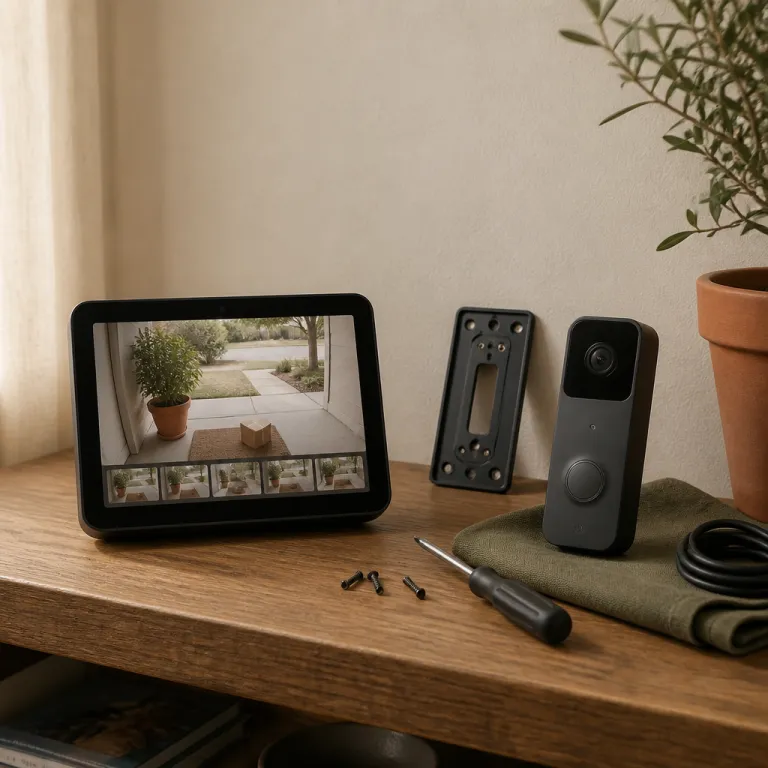
Why your Ring and Echo Show are stronger together than alone
Most people install a Ring doorbell, quickly link it to Alexa in the Alexa app, then stop there. They get a chime on their Alexa devices when someone presses the door, but they rarely use live view or motion previews on the Echo Show screen. That means they miss the real value of a tight Ring–Alexa integration that turns a simple doorbell into a front door command center.
When you handle the Ring doorbell and Echo Show live view setup properly, your Echo Show becomes a hands free peephole that works from the kitchen, bedroom, or even a home office. With the right Ring skill settings and a correctly linked Amazon account, you can watch live feeds from multiple Ring devices, control each camera with voice commands, and avoid constantly reaching for the Ring app on your phone. The goal is simple but powerful: you should be able to say one short phrase and instantly view Ring cameras without thinking about which device or app to open.
This only works smoothly when every Ring camera or doorbell is connected to the correct Alexa devices and all accounts are cleanly linked. You need the same Amazon account on your Echo Show and in the Alexa app, and the same Ring account in the Ring app and the Ring Alexa skill. Once those accounts are properly linked, you gain fast access to live video, motion snapshots, and doorbells cameras across your home, all from a single screen that feels more like a security hub than a smart speaker.
Auto show on Echo Show: turning doorbell presses into instant video
The single most useful feature in any Ring doorbell and Echo Show live view configuration is Auto Show, which makes the camera feed appear automatically when someone presses the doorbell. Instead of hearing a chime and fumbling for your phone, you simply glance at the Echo Show and view Ring video in real time. For first time buyers, this is the moment when the system stops feeling like a gadget and starts feeling like a real security upgrade.
To enable Auto Show using the Alexa app on a compatible Echo Show (for example, to enable Ring Auto Show on Echo Show 8):
- Open the Alexa app and tap Devices on the bottom menu bar.
- Use the tap menu at the top to filter by Cameras and doorbells.
- Choose your Ring device (doorbell or camera) from the list.
- Tap the Settings gear icon in the upper right corner.
- Open the option that controls Announcements and Live View on Alexa devices.
- Turn on the setting that makes the Echo Show watch live whenever someone presses the button.
In the same menu tap sequence, you can decide whether motion alone should trigger the live view, which is useful for a front gate but can be overwhelming for a busy street.
It is worth spending five extra minutes to learn how motion announcements and quiet hours interact with your daily routine. In the Alexa app, you can schedule Do Not Disturb on specific Alexa devices so that late night motion does not wake the household, while still allowing the Ring app to record events. If you also use an Echo Dot for chimes, follow a dedicated guide such as this one on how to add a device for doorbell announcements on Echo Dot, then keep the Echo Show focused on video while the smaller speakers handle sound.
Getting live view right: voice commands, latency, and daily habits
Once Auto Show is working, the next step in your Ring doorbell and Echo Show live view setup is mastering voice commands. Saying “Alexa, show me the front door” should bring up the live view from your Ring camera in a few seconds, while “Alexa, hide the front door” or “Alexa, stop” should close it again. When everything is connected correctly and the Ring skill is active, this becomes faster than unlocking your phone, opening the Ring app, and tapping the camera tile.
Latency is where the difference between a good setup and a frustrating one really shows. On a solid Wi‑Fi connection, the Echo Show usually loads a Ring live view in roughly the same time as the Ring app, but older Alexa devices or weak networks can add several seconds. If you notice a long delay when you try to watch live, check that your Ring devices have strong signal in the Ring app, then verify that your Amazon account and Ring account are properly linked in the Alexa app under the Ring skill settings.
For many households, the most natural habit is to use voice commands from another room while the Echo Show sits near the main door. You might be cooking and say “Alexa, show me the driveway” to view Ring cameras without leaving the stove, or ask “Alexa, talk to the front door” to start two way audio. If you have not yet linked Ring Alexa features, follow a step by step tutorial such as this guide on effortlessly connecting your Ring doorbell to Alexa, then test each Ring device by name until every camera responds reliably.
Multi camera views, Fire TV, and using Echo Show as a mini security hub
Once the basics of your Ring doorbell and Echo Show live view integration are stable, you can start treating the Echo Show as a compact security monitor. Newer Echo Show models support a split screen or picture in picture style view, which lets you view Ring feeds alongside other content or even show multiple Ring devices in sequence. This is especially helpful if you have several doorbells cameras or a mix of Ring cameras watching the driveway, garden, and side gate.
To build a multi camera routine in the Alexa app:
- Open the main menu tap icon (three lines) and choose Routines.
- Create a new routine and set a schedule or voice trigger.
- Add actions that show specific Ring cameras on the Echo Show at different times.
- Save the routine and test that each camera appears as expected.
You can have Alexa devices show the front door camera in the morning, then the backyard camera at night, effectively turning the screen into a scheduled watch live dashboard. If you prefer a larger display, a Fire TV Stick or Fire TV set can show a full screen live view from any Ring device when you say “Alexa, show me the front door on Fire TV”.
For serious monitoring, some owners mount an Echo Show 10 in a hallway and use its rotating screen to follow them while they view Ring feeds. Others rely on the Ring dashboard widget on a tablet for an always on grid of cameras, then keep the Echo Show for quick access and voice commands. If you want to extend protection beyond the door, consider pairing your setup with whole home sensors and alarms, as explained in this guide to Ring sensors beyond the doorbell, which shows how cameras, sensors, and Alexa devices can work together.
Fixing audio echo, account issues, and the small frictions that drive people crazy
One of the most common complaints after a Ring doorbell and Echo Show live view configuration is the dreaded audio feedback loop. When the Ring doorbell and the Echo Show are close together, two way talk can create a piercing echo because both the doorbell speaker and the Echo microphone hear each other. The fix is simple but rarely explained: you either move the Echo Show a few metres away or lower its volume before starting a conversation.
Another hidden friction point is account confusion, especially in homes with multiple Amazon accounts or shared Ring accounts. If your account linked status is wrong, you might see the Ring skill enabled but only some Ring devices appear in the Alexa app, or live view fails with an error about permissions. The solution is to confirm that the same Amazon account is signed in on the Echo Show and in the Alexa app, then disable and re enable the Ring skill so that all accounts are freshly linked.
While you are in the Alexa app, take a moment to review the Ring skill terms of service, licenses and terms, and the privacy licenses that govern how video and audio are handled between Ring and Amazon. These documents, along with Amazon affiliates privacy statements, explain how your data moves between the Ring app, Alexa devices, and cloud storage. Reading them once helps you make informed choices about which cameras can access two way talk, which devices can watch live, and how long recordings stay available for view Ring history.
For quick troubleshooting when live view misbehaves, work through this checklist in order:
- Check Wi‑Fi signal strength for each Ring device in the Ring app and confirm it is connected to the correct band.
- Confirm that the same Amazon and Ring accounts are used on all devices and that each account is correctly linked.
- Disable and re enable the Ring skill in the Alexa app to refresh permissions and device access.
- Reboot the Echo Show, your router, and the Ring doorbell or camera, and if problems persist, perform a hardware reset following Ring Help Center instructions.
Privacy, permissions, and teaching your household how to use Ring with Alexa
A well tuned Ring doorbell and Echo Show live view setup is not just about technology; it is about household habits and privacy boundaries. Start by deciding who in the home can access the Ring app, who can use Alexa devices for live view, and whether guests should be allowed to use voice commands to open the front door camera. In many families, it makes sense to keep full Ring app control on one or two phones, then let everyone else use the Echo Show for quick glances only.
In the Ring app, you can share access to specific Ring devices with trusted people while keeping admin control for yourself. In the Alexa app, you can restrict voice purchasing and other sensitive features, but still allow anyone in the room to say “Alexa, show me the front door” and watch live video. This balance keeps the system convenient while respecting the privacy of neighbours, delivery drivers, and household members who might not want every camera view broadcast across multiple Alexa devices.
Finally, remember that smart home setups evolve over time as you add more Ring devices or change Amazon accounts. When you install a new Ring device, always check that it is connected to the right Wi‑Fi network, appears correctly in the Ring app, and is added to the Ring skill so that Alexa devices can see it. A quick review of the Ring skill terms of service and the latest privacy licenses once a year keeps you aware of any changes in how your doorbells cameras, Echo Shows, and Fire TV units share data and live view access.
Key statistics on Ring, Alexa, and smart display security use
- According to Amazon’s published Alexa usage updates and earnings reports, there are well over 100 million Alexa devices in customers’ homes worldwide, and Ring is consistently highlighted as one of the most commonly enabled smart home skills among camera brands, which makes the Ring Alexa combination a mainstream choice rather than a niche experiment.
- Ring has reported in blog posts and investor communications that homes with multiple Ring devices, such as a doorbell plus at least one additional camera, see significantly higher engagement with live view features compared with single device households, because people use cameras for both security and simple check ins.
- Consumer surveys from independent home security analysts and organisations such as Consumer Reports indicate that many Echo Show owners only use basic doorbell press notifications, while fewer than half regularly use voice commands like “Alexa, show me the front door”, suggesting that a large share of buyers underuse live view capabilities.
- Fire TV adoption continues to grow, and Amazon has highlighted in Fire TV feature announcements that camera viewing on Fire TV, including Ring doorbells cameras, is one of the fastest growing smart home use cases for large screen devices, turning televisions into occasional security monitors.
FAQ: Ring doorbells, Echo Show, and live view
Why is my Ring live view slow on Echo Show compared with my phone ?
Live view on Echo Show can feel slower if the Echo is on a weaker Wi‑Fi band than your phone or if the Ring skill has not been refreshed recently. Check the signal strength for your Ring device in the Ring app, then reboot the Echo Show and router to clear network congestion. If delays persist, disable and re enable the Ring skill in the Alexa app so that your Amazon account and Ring account are cleanly linked again.
Can I stop motion alerts on Echo Show at night but keep recordings ?
Yes, you can keep motion recordings in the Ring app while silencing announcements on Alexa devices during certain hours. Use the Alexa app to set Do Not Disturb schedules on your Echo Show or to turn off motion announcements for specific Ring devices. The cameras will continue to record events, but the Echo Show will not speak or automatically show live view during your quiet hours.
How do I use my TV as a monitor for Ring cameras ?
If you have a Fire TV Stick or a Fire TV set linked to the same Amazon account as your Echo Show, you can use it as a large screen monitor. Enable the Ring skill in the Alexa app, make sure all Ring devices appear under cameras, then say “Alexa, show me the front door on Fire TV” to open a full screen live view. This is useful for quickly checking doorbells cameras from the sofa without reaching for your phone.
Is it safe to let guests use Alexa to view my Ring cameras ?
Allowing guests to use voice commands on your Echo Show is a personal choice that depends on your privacy comfort level. Anyone in the room can usually say “Alexa, show me the front door” if the microphone is active, so think about where the Echo Show is placed and who can hear or see the screen. If you want tighter control, you can mute the microphone when guests are present or move the Echo Show to a more private location.
What happens to my data when I link Ring with Alexa ?
When you link Ring with Alexa, video and audio streams move between the Ring app, Amazon cloud services, and your Alexa devices under the rules set out in the Ring skill terms of service and Amazon privacy policies. You can review these documents, including licenses and terms plus affiliates privacy statements, from within the Alexa app before enabling the Ring skill. Understanding these policies helps you decide which Ring devices can access live view on shared screens and how long recordings remain available for view Ring history.
Trusted sources for further reading
- Amazon Alexa Help Center (search for “Ring skill” and “camera live view”)
- Ring Help Center (search for “link Ring to Alexa” and “Ring live view troubleshooting”)
- Consumer Reports smart home security guides and camera comparison articles