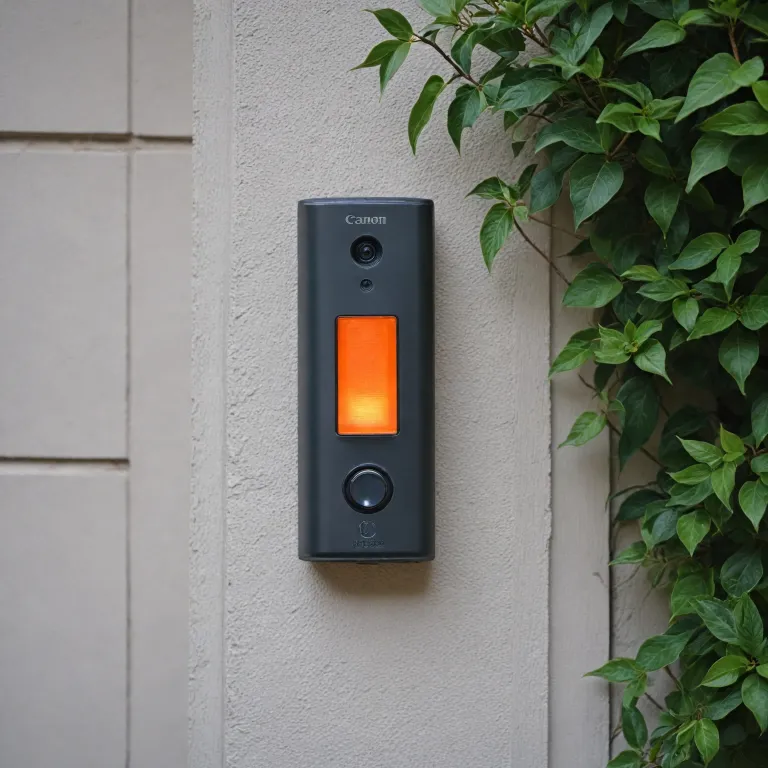



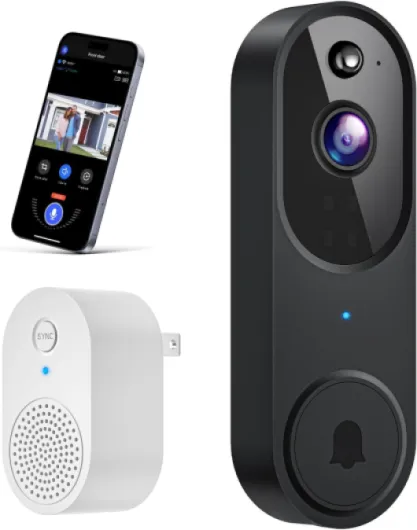
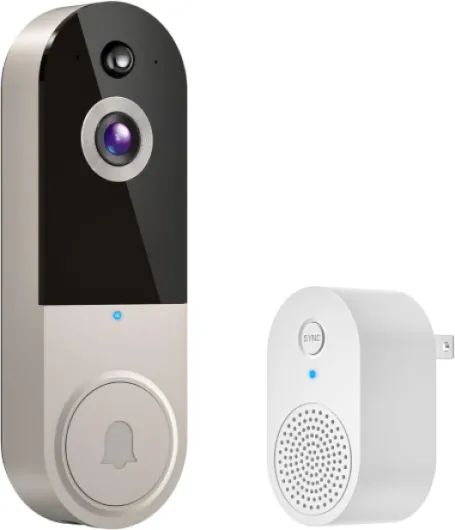
What does it mean when your SkyBell flashes orange?
Understanding the Orange Flash on Your SkyBell
If your SkyBell video doorbell is flashing orange, it’s a clear signal that something needs your attention. The orange light is not just a random color choice—it’s a specific indicator designed by the manufacturer to communicate a particular status or issue with your device. Many users notice this flashing orange light during setup, after a reboot, or when trying to connect the doorbell to their phone app.
Typically, an orange flash means the SkyBell is having trouble connecting to your Wi-Fi network or completing the installation process. This can happen for several reasons, such as weak Wi-Fi signal, incorrect network credentials, or a temporary glitch after rebooting. Sometimes, the orange light may also appear if the device is trying to update its firmware or is stuck in a loop where it cannot complete the connection process.
It’s important not to skip content in your SkyBell app or installation guide, as each step is crucial for a successful setup. If you see the orange light, don’t panic. The issue is usually fixable, and you’ll find more details on common causes and troubleshooting steps in the following sections. For those living in apartments or shared spaces, understanding how your video doorbell works and how to enhance your security can be especially valuable. You can learn more about enhancing apartment security with video doorbells to make the most of your device.
In summary, the flashing orange light is your SkyBell’s way of telling you it needs help to finish setup or connect properly. Addressing it promptly will ensure your doorbell works as intended and keeps your entryway secure.

Common reasons for a SkyBell flashing orange
Typical Causes Behind the Orange Flash
When your SkyBell video doorbell starts flashing orange, it’s signaling that something isn’t quite right. Understanding the most common reasons can help you address the issue quickly and avoid unnecessary frustration. Here are the main factors that can trigger this orange flashing:
- Wi-Fi Connection Issues: If the device can’t connect to your network, it will often flash orange. This can happen if your Wi-Fi signal is weak, or if there’s a problem with your router. Sometimes, simply rebooting your router or moving it closer to the doorbell can help.
- Incomplete Setup: During installation, if you skip a step in the app or the device fails to complete the setup, the orange light may appear. Double-check that you’ve followed each step, including clicking through all prompts on your phone.
- Power Supply Problems: The SkyBell needs a stable power source. If the voltage is too low or the wiring isn’t secure, you might see the orange flash. Make sure the wires are properly connected and that your transformer meets the required specifications.
- Firmware Updates: Sometimes, the device will flash orange while updating its software. This should only last a few minutes. If it continues, there may be a problem with the update process.
- Overheating: In rare cases, if the doorbell gets too hot, it may flash orange as a warning. This is more likely if the device is exposed to direct sunlight for extended periods.
It’s important to note that the type and pattern of the flash can give you more clues. For example, alternating orange and red flashes might indicate a different issue than a steady orange light. Always refer to your device’s manual for specific guidance.
For more on how door contact sensors can enhance your home security and work alongside your video doorbell, check out this guide on enhancing home security with door contact sensors.
How to troubleshoot a SkyBell flashing orange
Step-by-step actions to address the flashing orange light
If your SkyBell video doorbell is flashing orange, it usually signals a problem with the device’s connection or power. Here’s how you can troubleshoot the issue effectively:- Check your Wi-Fi connection: The most common reason for an orange flash is a weak or unstable Wi-Fi signal. Make sure your router is working and the doorbell is within range. Try rebooting your router and see if the SkyBell reconnects.
- Inspect power supply: Insufficient power can cause the device to flash orange. Double-check the wiring and ensure the transformer meets the required voltage for your SkyBell type. If you recently install or move the device, confirm all connections are secure.
- Use the app for diagnostics: Open the SkyBell app on your phone and look for any error messages or alerts. The app will often provide more details about the flashing orange status and guide you through steps to resolve it.
- Try rebooting the device: Sometimes, a simple reboot can clear temporary glitches. Turn off the power to the doorbell for a minute, then turn it back on. Wait for the device to complete its startup sequence and check if the orange light persists.
- Check for firmware updates: Outdated firmware can cause connectivity issues. In the app, look for any available updates and install them. This can resolve bugs that lead to flashing orange lights.
- Observe the light pattern: If the orange light flashes in combination with red or green, consult the official SkyBell support documentation for your specific model. The pattern can indicate different issues, such as failed setup or skipped steps during installation.
When to reset your SkyBell device
Knowing When a Reset Is Necessary
If your SkyBell continues flashing orange after you have tried basic troubleshooting steps like checking your Wi-Fi connection, rebooting your router, or reinstalling the app, it may be time to consider a reset. Persistent orange flashes often indicate a deeper issue that simple fixes will not resolve. Resetting the device can help clear out any glitches and restore the doorbell to its default settings.
- If the SkyBell will not connect to your phone or the app after multiple attempts, a reset is recommended.
- When the orange light flashes in a pattern that does not stop after rebooting or turning the device off and on, a reset can help.
- If you notice the device is stuck in a loop of flashing orange and red, and you have already checked your internet and power supply, resetting may be the next step.
To reset your SkyBell, press and hold the main button for about a minute until the light changes. This process will erase all previous settings, so you will need to complete the install and setup process again through the app. Make sure you have your Wi-Fi credentials and phone ready before you start. Skipping any step during the reset or install process can lead to incomplete setup and continued flashing issues.
Resetting should not be your first solution, but it is effective when other troubleshooting steps fail. If the orange flashing persists even after a reset, it could be a sign of a hardware problem, and you may need to contact customer support for further assistance.
Tips to prevent future orange flashing issues
Simple habits to avoid future orange flashes
- Keep your app updated. The SkyBell video doorbell relies on its app for notifications and settings. Make sure you regularly update the app on your phone to avoid compatibility issues that can cause the device to flash orange.
- Check your Wi-Fi connection. A weak or unstable Wi-Fi signal is a common reason for flashing orange lights. Place your router closer to the doorbell or use a Wi-Fi extender to ensure a stable connection.
- Monitor power supply. If your doorbell is not getting enough power, it may start flashing orange or even red. Double-check the wiring and the type of transformer you use during install. If you skip this step, you might face recurring issues.
- Regularly reboot your device. Rebooting the SkyBell every few months can help clear minor glitches that may lead to flashing orange lights. Simply turn the power off for a minute, then turn it back on.
- Don’t skip firmware updates. When you see a prompt in the app to update firmware, click to complete the process. Outdated firmware can cause the doorbell to flash orange as a warning.
- Test after changes. After any install or network change, test the doorbell. If it flashes orange, address the issue immediately rather than skipping content in the troubleshooting steps.
By following these habits, you will reduce the chances of your SkyBell flashing orange and ensure your video doorbell works reliably. Consistent maintenance and attention to app notifications are key to preventing most issues before they start.
Comparing SkyBell with other video doorbells for reliability
How SkyBell Stacks Up Against Other Video Doorbells
When your SkyBell starts flashing orange, it can be frustrating, especially if you rely on your video doorbell for security. But how does SkyBell compare to other popular brands like Ring or Nest when it comes to reliability and troubleshooting?- Flashing Indicators: Most video doorbells use colored lights to signal issues. While SkyBell flashes orange for connectivity or power problems, other brands might use red or blue. The meaning behind these flashes can vary, so always check your device’s manual or app for details.
- App Support: SkyBell’s app will alert you to issues, but some users find that other brands offer more detailed notifications or step-by-step guides for troubleshooting. For example, Ring’s app often provides direct links to support content when a problem is detected.
- Installation and Connectivity: SkyBell is generally easy to install, but some users report more frequent flashing orange issues compared to competitors. Brands like Ring have streamlined the install process and offer more robust support for Wi-Fi connection problems, which can reduce the need for rebooting or resetting.
- Reset and Reboot Options: All major video doorbells allow you to reset the device if troubleshooting steps don’t work. However, the process to turn off or reboot a SkyBell can take a few extra steps, while others may let you complete a reset directly from the app or by holding a button for a minute.
- Long-Term Reliability: Frequent flashing orange signals can indicate ongoing power or network issues. Some users find that other brands are less prone to these types of alerts, possibly due to improved hardware or software updates that address common problems.