

Understanding ring doorbell screenshots
What Makes a Ring Doorbell Screenshot Unique?
When you use a Ring video doorbell, you’re not just getting a simple camera. The device offers a range of features, including the ability to capture a snapshot or screenshot from your live view or recorded video. A screenshot is a still image taken from the video feed, allowing you to save or share a specific moment. This can be especially useful if you want to document a motion event, keep a record of a visitor, or provide evidence for a security concern.
How Screenshots Work with Ring Devices
Ring doorbells and cameras are designed to work seamlessly with the Ring app on your mobile device. When you tap live or open live view, you can see what’s happening in real time. At any moment, you can capture a screenshot by tapping the snapshot capture or camera snapshot button. This will save an image of what’s currently visible on your screen. The process is straightforward, but it may vary slightly depending on whether your device is battery powered or wired, and whether you have an active Ring subscription plan.
- Live View: Allows you to view camera footage in real time and capture screenshots instantly.
- Event History: Lets you review past motion events or doorbell video recordings and take screenshots from those clips.
- Notification Snapshot: Some Ring devices send a snapshot with your notification phone alerts, giving you a quick preview of activity.
Why Take Screenshots from Your Ring Video Doorbell?
Capturing a screenshot from your Ring device can serve several practical purposes. For example, you might want to save a video snapshot of a package delivery, document suspicious activity, or simply keep a record of visitors. Screenshots are also handy for sharing with neighbors or law enforcement if needed. If you’re interested in maximizing your doorbell camera’s potential, you can learn how to get a doorbell camera for free and explore more ways to enhance your home security.
Understanding how to effectively capture and use screenshots is just the beginning. In the next sections, you’ll discover step-by-step instructions for taking screenshots, where they’re stored, and how to access them on your phone or other devices. You’ll also learn about privacy policy considerations, troubleshooting tips, and the benefits of having a Ring subscription for extended storage and video recording features.
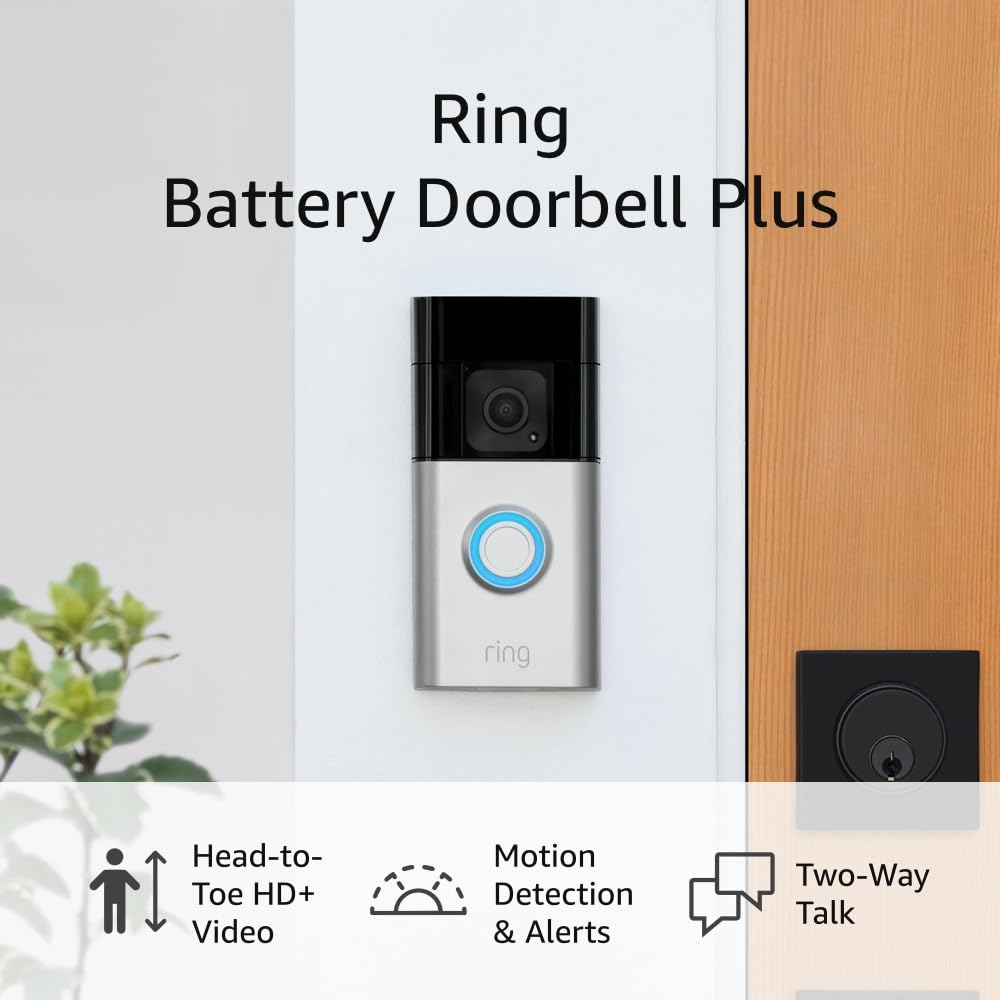
- + Head-to-Toe video
- + Live View
- + Two-Way Talk
- + Motion Detection & Alerts
- + Suitable for Home or Business

How to capture a screenshot from your ring doorbell
Step-by-step: Capturing a Screenshot from Your Ring Doorbell
Getting a clear snapshot from your Ring video doorbell is straightforward once you know where to look in the app. Whether you want to capture a moment from a live view or a recorded event, the process is similar across most Ring devices. Here’s how you can do it on your mobile device:- Open the Ring app on your phone or tablet. Make sure you’re logged in and your Ring device is connected.
- From the dashboard, select your video doorbell or camera.
- To capture a live moment, tap Live View. Wait for the video feed to load.
- On the live video screen, look for the snapshot capture or camera icon. Tap it to take a screenshot of what’s currently visible.
- If you want a screenshot from a past event, go to Event History, choose the desired motion event or doorbell video, and play it. Pause at the right moment, then use your phone’s screenshot function (usually pressing the power and volume buttons together).
Tips for Better Snapshots
- For battery powered devices, make sure your Ring doorbell has enough charge before starting a live view or recording.
- If you have a Ring subscription plan, you’ll have access to more video recording and event history options, making it easier to find the right moment to capture.
- Notification snapshots and camera snapshots may appear in your app’s timeline, depending on your settings and subscription.
- Some features, like advanced video snapshot capture, may require a specific Ring subscription or device model.
Extra Protection for Your Camera
If you want to keep your Ring device safe from the elements while capturing clear snapshots, consider using a weatherproof camera cover. This can help maintain image quality and protect your investment. Remember, the steps above apply to most Ring video doorbells and cameras, but the exact process may vary slightly depending on your model and app version. Always check the latest Ring privacy policy and device documentation for updates.Where your screenshots are stored and how to access them
Finding and Accessing Your Saved Snapshots
After you capture a screenshot or snapshot from your Ring video doorbell, knowing where it’s stored and how to access it is essential. The process can vary depending on your device, subscription plan, and whether you’re using a battery powered or wired Ring device.
- Ring App: Most screenshots and video snapshots are saved within the Ring app. To view them, open the app on your mobile device, tap the menu, and select your Ring device. From there, you can access the Event History or Camera Snapshot section. This is where you’ll find snapshots from motion events, live view, or when you manually capture a snapshot.
- Notification Snapshots: If you receive a notification on your phone, tapping it may take you directly to the relevant video or snapshot capture. You can then save or share the image as needed.
- Video Recordings: For users with a Ring subscription plan, video recordings and snapshots are stored in the cloud. You can open the Ring app, tap your device, and view camera snapshots or video recordings from the timeline. Without a subscription, your ability to save and access these files may be limited to live view or recent motion events.
- Saving to Your Phone: When you view a snapshot or video, look for the download or save icon. Tap it to save the image directly to your phone’s gallery. This is especially useful if you need to share the screenshot or keep a backup.
For a detailed breakdown of storage options and how battery powered models handle snapshot capture and video recording, you can learn more about Ring battery doorbells in this comprehensive guide.
| Where to Find | How to Access | Subscription Needed? |
|---|---|---|
| Event History (Ring App) | Open app, tap device, select event | Recommended for full access |
| Notification Snapshot | Tap notification on phone | No, but limited features |
| Cloud Storage | Open app, view timeline, download | Yes, for video/snapshot history |
| Local Phone Storage | Click save/download in app | No |
Keep in mind, privacy policy and storage duration depend on your Ring subscription and device settings. Regularly review your saved content and manage your storage to ensure important snapshots and recordings are not lost.
Practical uses for ring doorbell screenshots
Everyday Scenarios Where Screenshots Shine
Ring doorbell screenshots are more than just quick images—they can be powerful tools for home security and daily convenience. Once you capture a snapshot from your Ring device, you unlock a range of practical uses that go beyond simple viewing.
- Evidence for Security Incidents: If your Ring camera detects motion events or records suspicious activity, a screenshot lets you quickly save and share a clear image. This can be helpful for reporting incidents to authorities or your neighborhood group.
- Package Deliveries: When you receive a notification phone alert about a delivery, a quick tap to capture a snapshot gives you proof of when and where a package was dropped off. This is especially useful if you need to confirm a delivery with a courier or retailer.
- Visitor Identification: Not sure who rang your doorbell? Use the live view feature in the app to open live video and capture a screenshot of your visitor. This can be useful for keeping a record of guests or unexpected visitors.
- Sharing with Family: Screenshots can be easily saved and sent to family members or housemates. For example, if you want to let someone know a friend has arrived, just select the relevant snapshot capture and share it from your mobile device.
- Monitoring Property Changes: Over time, you might notice changes around your property. Regularly saving camera snapshots helps you track landscaping, renovations, or even seasonal changes.
Making the Most of Your Screenshots
To get the best results, make sure you know how to quickly tap live or open live view in your Ring app. With a Ring subscription plan, you can also access event history and video recording, which allows you to capture screenshots from past events—not just live moments. If your device is battery powered, keep an eye on battery levels to avoid missing important moments.
Remember, screenshots are stored separately from full video recordings. This means you can save space in your storage while still keeping key moments. For more advanced features, some options may require an active Ring subscription.
Tips for Effective Snapshot Capture
- Always check your privacy policy settings before sharing images.
- Use the app’s select and save options to organize your screenshots.
- Regularly review your notification snapshot history to spot any missed events.
By learning how to capture and use screenshots effectively, you can enhance the value of your Ring video doorbell and make your home monitoring more efficient.
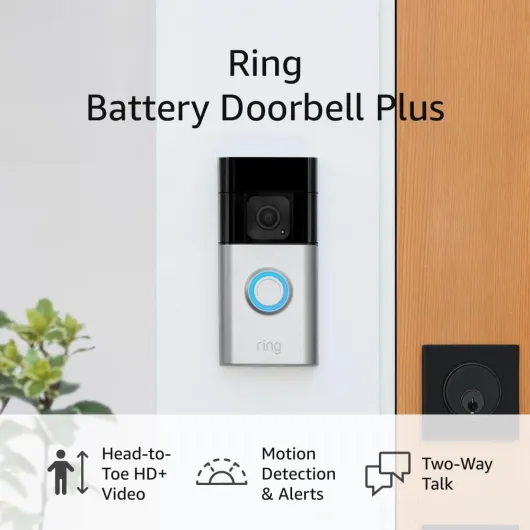
- + HD+ Video quality
- + Motion detection & alerts
- + Two-Way Talk feature
- + Suitable for home or business
Privacy and security considerations with screenshots
Protecting Your Privacy When Using Screenshots
When you capture a snapshot or video snapshot from your Ring device, it's important to understand how privacy and security are managed. Screenshots from your video doorbell can contain sensitive information, such as faces, vehicles, or details about your home. Here are some key points to keep in mind:
- Access Control: Only users with access to your Ring app or account can view camera snapshots, video recordings, or event history. Make sure your account credentials are secure and never share your login details.
- Ring Subscription and Storage: If you have a Ring subscription plan, your screenshots and video recordings are stored in the cloud. Review the privacy policy to learn how your data is managed and who can access it.
- Mobile Device Security: Screenshots saved to your phone or tablet are only as secure as your device. Use a passcode or biometric lock to prevent unauthorized access to your notification snapshots or saved images.
- Sharing Responsibly: Before you tap to share or save a snapshot capture, consider what personal information is visible. Avoid posting images online that reveal your location, routines, or the layout of your property.
- Motion Events and Notifications: Your Ring doorbell may send notification phone alerts with a camera snapshot. These can be viewed quickly, but be cautious about who can see your phone screen when you open live view or tap live to capture an image.
- Battery Powered Devices: If your Ring device is battery powered, ensure it is always charged to maintain security features like snapshot capture and video recording. A dead battery could mean missed events or gaps in your event history.
By following these steps, you can use your Ring doorbell's screenshot features while keeping your privacy and security top of mind. Always stay updated with the latest app features and privacy settings to protect your home and personal data.
Troubleshooting common screenshot issues
What to Do When Screenshots Aren’t Working
Sometimes, capturing a snapshot or screenshot from your Ring device doesn’t go as planned. Here are some common issues and practical steps to resolve them, so you can keep using your video doorbell’s features effectively.
- App Not Responding: If the Ring app freezes or won’t let you tap to capture a screenshot, try closing and reopening the app on your mobile device. Make sure your phone’s operating system and the Ring app are both updated to the latest version.
- Live View Not Loading: If you can’t open Live View to take a snapshot, check your Wi-Fi connection and ensure your Ring doorbell is online. Battery powered devices may disconnect if the battery is low, so check the battery status in the app.
- Screenshot Not Saving: After you click to capture, your screenshot should save to your phone’s storage or the app’s event history. If you can’t find it, check your phone’s photo gallery and the Ring app’s event history. Some features, like video recording and snapshot capture, may require an active Ring subscription plan.
- Notification Snapshot Missing: If you expect a notification snapshot but don’t receive one, review your notification settings in the app. Make sure motion events and doorbell video alerts are enabled for your device.
- Subscription Limitations: Certain features, like saving video snapshots or accessing extended event history, may only be available with a Ring subscription. Without a plan, you might only see live camera snapshots and not be able to save or review past recordings.
Tips for Reliable Snapshot Capture
- Always check your Ring device’s battery level, especially for battery powered models.
- Keep your app and device firmware updated to avoid compatibility issues.
- Learn the difference between a camera snapshot and a video recording. Snapshots are still images, while recordings capture motion events and audio.
- For best results, use the tap live or open live view feature in the app before you capture a screenshot.
When to Contact Support
If you’ve tried these steps and still can’t save or view screenshots from your Ring camera, it may be time to reach out to Ring support. They can help with device-specific issues, app errors, or subscription questions. Always have your device details and subscription information ready when you contact them.